8 presets
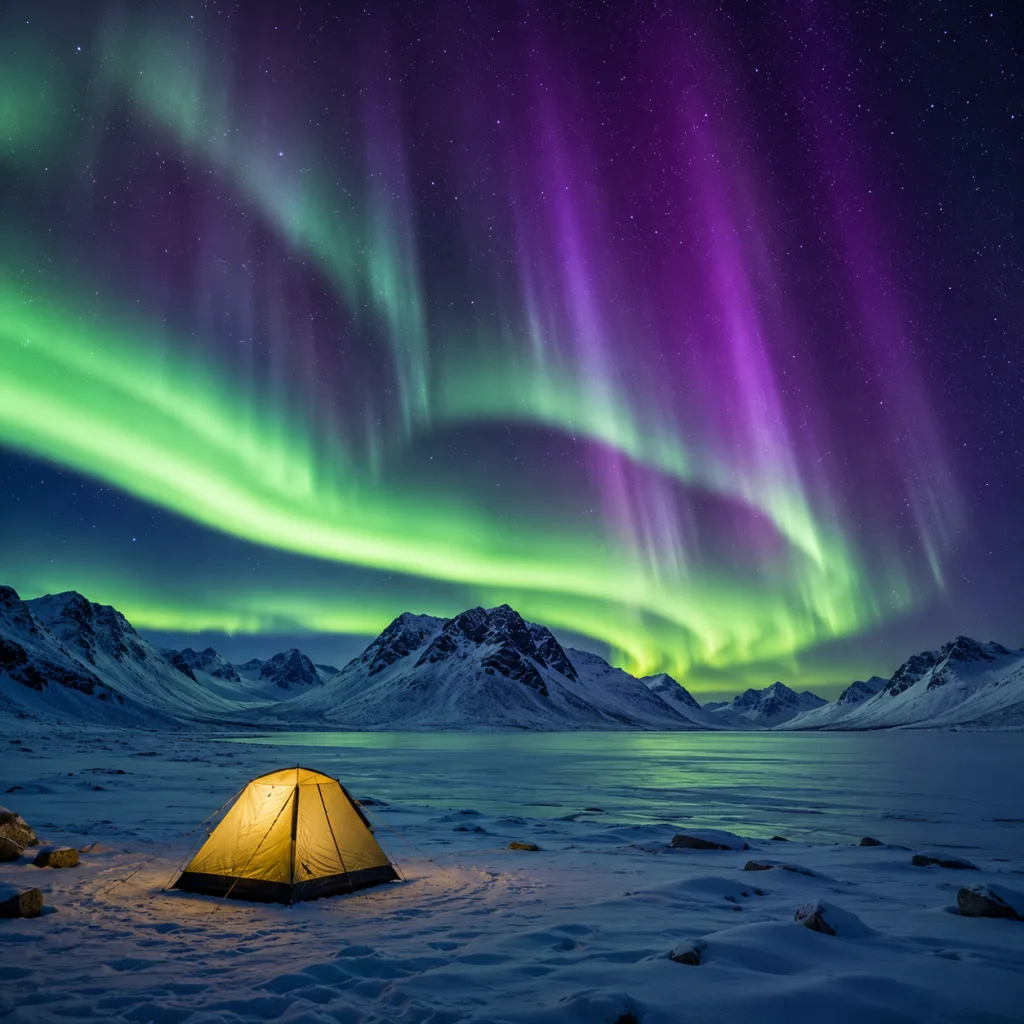
Lapland, Greenland, Antarctica. Cold blue, white ice, aurora and midnight sun.
Arctic
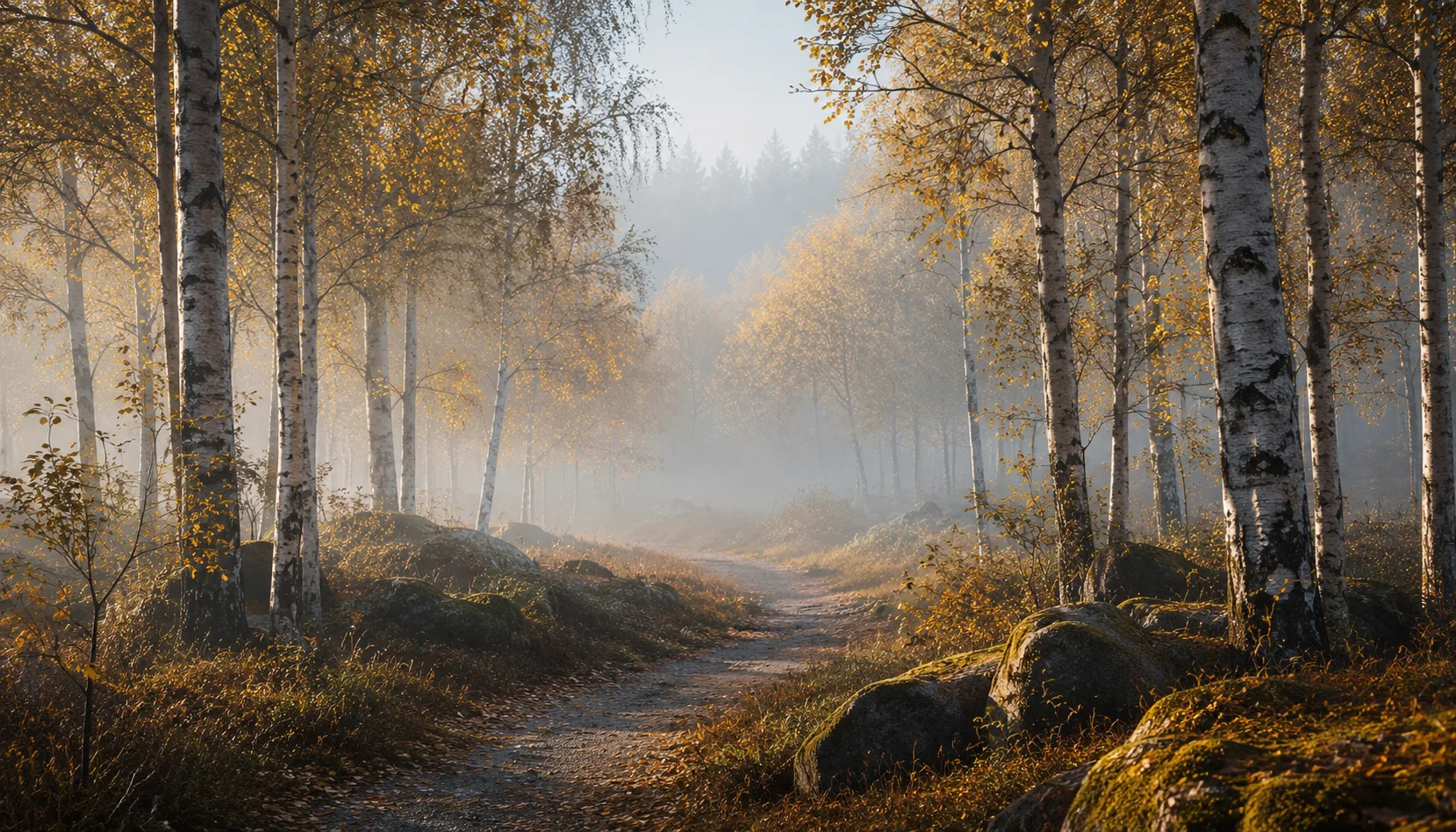
All looks on one photo
The same photo, every preset. Switch the test image to see how the looks hold up.


About Arctic
Arctic is built around a single feeling: the silence of extreme cold. Every preset in this pack shares a cool blue-green undertone you notice immediately when you line up the images. Shadows fall toward deep blue. Highlights stay cool, almost metallic. Whites pick up a faint icy tint without becoming clinical. This is not a filter placed over your photos. It is a colour logic that runs through every preset in the collection.
This pack was made for photographers who work in places where the light is unforgiving. Overexposed snowfields, the soft magenta of an aurora, the blue twilight just before sunrise on the ice. But Arctic works just as well in a city on a grey winter day, or in portraits taken in cold natural light. If you shoot raw and think of post-processing as part of the story you are telling, this pack fits the way you work.
The strongest results come from landscapes with snow, ice or open water. Frozen lakes, fjords, tundra. But winter street photography responds well too: wet pavements, cold air, people in heavy coats. For portraits, the pack works best outdoors in diffused light, where the cool tone adds atmosphere without dominating the skin. Black and white images converted through Arctic have a recognisable character: cool midtones, fine-grained contrast.
A single preset gives you one way of looking at a photo. Arctic gives you a coherent visual language. The fourteen presets in the pack are designed as a system, ranging from light and airy to dark and dramatic, but always within the same colour palette. That makes it easier to work through a series and keep a consistent look without constant readjustment. The presets complement each other. They do not compete.
You install the pack in Lightroom Classic, Lightroom CC or Adobe Camera Raw. Import the files through the preset panel, organise them in a dedicated folder, and you are ready to go. Start with the base presets and use the exposure and colour temperature adjustments when the shot calls for it. Most images are done in two or three small moves. You work faster, and your series holds together.
What's included in the download?
Presets for Lightroom Classic and Lightroom Desktop. Import via the Presets panel in the Develop module. Works on RAW and JPEG.
Capture One styles. Import via the Styles panel. Compatible with Capture One Pro and Capture One Express for Sony, Fujifilm and Nikon.
3D LUT for use in DaVinci Resolve, Adobe Premiere Pro, Final Cut Pro and other video software. Also works in Photoshop via Camera Raw or as a Color Lookup adjustment layer.
Installation instructions for Lightroom, Capture One and video software. Step by step.
Installation
Lightroom Classic (.xmp)
Open Lightroom Classic and go to the Develop module. In the Presets panel, click the plus icon and choose "Import Presets". Select the .xmp files from the unzipped folder. After import the presets appear in your chosen folder and are immediately available for all photos in your library.
Lightroom (mobile and desktop app)
Open a photo in Lightroom. Tap "Presets" at the bottom, then tap the three-dot menu in the top right. Choose "Import Presets" and select the .xmp files. On mobile, access this via the three dots at the top of the edit screen. Presets sync automatically to all your devices via Adobe Creative Cloud.
Capture One (.costyle)
Open Capture One and go to the Styles panel in the Color tool. Click the arrow menu next to "Styles" and choose "Import Styles". Select the .costyle files. The styles are then immediately available in the Styles panel and can be applied to any selected photo or multiple photos at once.
DaVinci Resolve / Premiere Pro (.cube)
Copy the .cube files to a fixed folder on your drive. In DaVinci Resolve add a Color LUT node and import the .cube file by right-clicking the node. In Premiere Pro use the "Lumetri Color" effect and under "Creative" choose the "Look" option to load the .cube file. The LUT also works in Final Cut Pro via an FCPX Plugin or in Photoshop as an adjustment layer.