14 presets
Fourteen presets inspired by musicians and their visual language — from Motown gold to neon punk.

Music
All looks on one photo
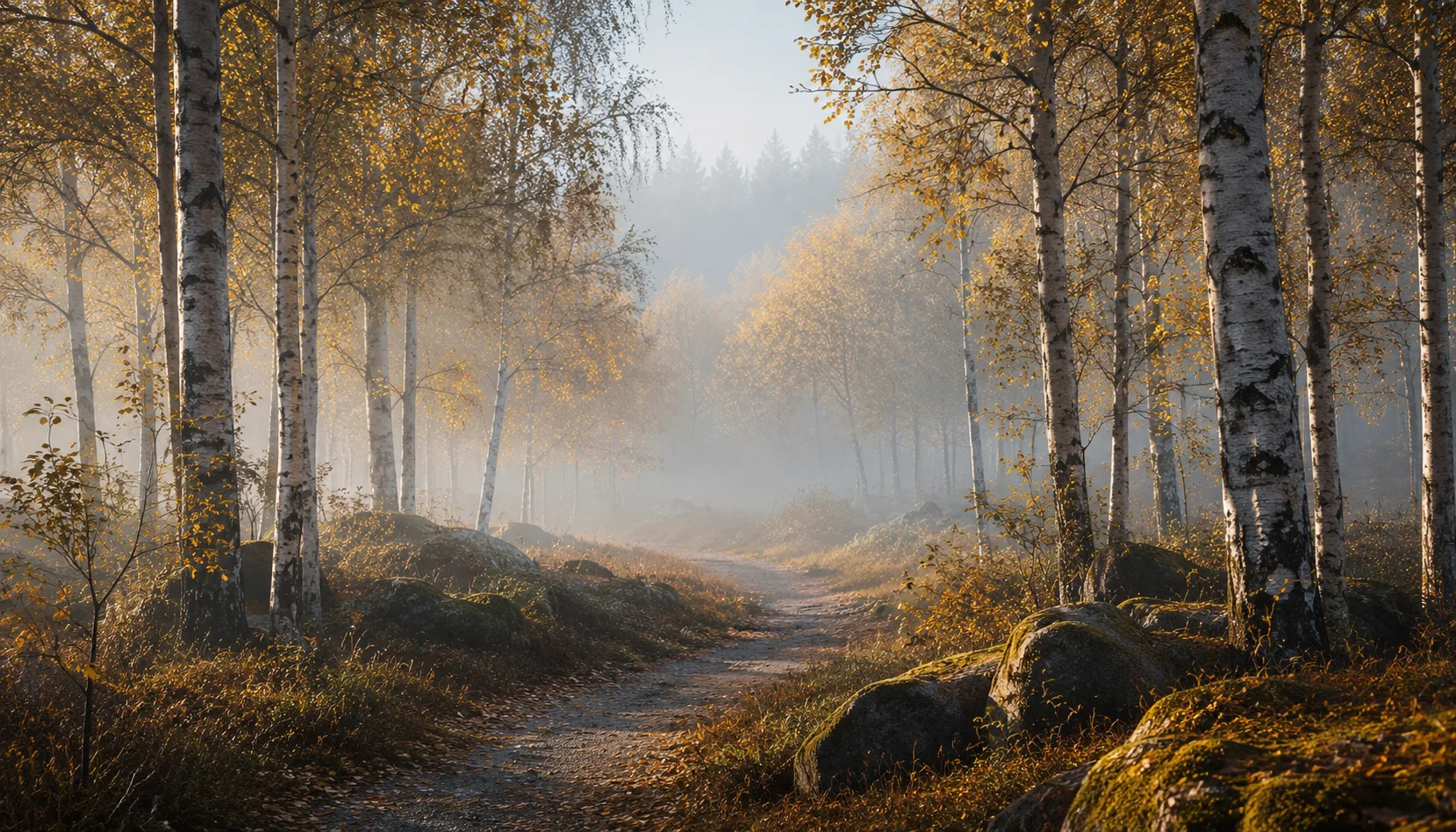
The same photo, every preset. Switch the test image to see how the looks hold up.


About Music
Music has always had its own visual language. Think of the warm, saturated tones on Motown album covers from the sixties, the hard contrast of a black-and-white punk band photo, the neon light bouncing off a wet street after a show. That visual language is the thread running through all fourteen presets in this pack. They don't share a single color curve or filter recipe, but they share a feeling. They sound like something.
This pack was built for photographers who work where music lives. Concert halls, rehearsal spaces, backstage corridors, festivals, street musicians in full afternoon sun. Portrait photographers shooting a musician in a studio or on location will find useful presets here too. You don't need to be a professional music photographer. If you have a feel for the culture, the energy, and the visual traditions around music, these presets will respond to that.
The presets work well with images that have strong light and deep shadows, like stage lighting or a single spot on a face. But they also hold up in soft daylight inside a rehearsal room or against the colorful noise of a festival ground. Warm skin tones, metallic detail on instruments, the hazy glow of a smoke machine, neon signs in the background: these are the details that bring the presets to life. The styles range from cinematic gold to cold, hard, and graphic. Fourteen scenes, fourteen choices.
Individual presets are useful. A collection that was conceived as a whole is something else. The fourteen presets in Music are designed to work alongside each other. You can use them as a reference frame: what fits this image, this light, this story? That's a different question than: which button makes my photo look better? The collection helps you choose a visual direction, not just apply a look.
Import the pack into Lightroom Classic, Lightroom CC, or Camera Raw. Create a separate folder in your preset panel so all fourteen are within easy reach. When working with a series, pick one preset as your starting point and adjust per image using the basic settings. The presets were built on RAW files but work on JPEG as well. If a preset feels too heavy at first, try dialing it back to around 80% opacity and fine-tune from there.
What's included in the download?
Presets for Lightroom Classic and Lightroom Desktop. Import via the Presets panel in the Develop module. Works on RAW and JPEG.
Capture One styles. Import via the Styles panel. Compatible with Capture One Pro and Capture One Express for Sony, Fujifilm and Nikon.
3D LUT for use in DaVinci Resolve, Adobe Premiere Pro, Final Cut Pro and other video software. Also works in Photoshop via Camera Raw or as a Color Lookup adjustment layer.
Installation instructions for Lightroom, Capture One and video software. Step by step.
Installation
Lightroom Classic (.xmp)
Open Lightroom Classic and go to the Develop module. In the Presets panel, click the plus icon and choose "Import Presets". Select the .xmp files from the unzipped folder. After import the presets appear in your chosen folder and are immediately available for all photos in your library.
Lightroom (mobile and desktop app)
Open a photo in Lightroom. Tap "Presets" at the bottom, then tap the three-dot menu in the top right. Choose "Import Presets" and select the .xmp files. On mobile, access this via the three dots at the top of the edit screen. Presets sync automatically to all your devices via Adobe Creative Cloud.
Capture One (.costyle)
Open Capture One and go to the Styles panel in the Color tool. Click the arrow menu next to "Styles" and choose "Import Styles". Select the .costyle files. The styles are then immediately available in the Styles panel and can be applied to any selected photo or multiple photos at once.
DaVinci Resolve / Premiere Pro (.cube)
Copy the .cube files to a fixed folder on your drive. In DaVinci Resolve add a Color LUT node and import the .cube file by right-clicking the node. In Premiere Pro use the "Lumetri Color" effect and under "Creative" choose the "Look" option to load the .cube file. The LUT also works in Final Cut Pro via an FCPX Plugin or in Photoshop as an adjustment layer.